




TL;DR: PHP Google Login Tutorial
In this PHP Google Login Tutorial, we will be using OAuth2 and storing users in a SQLite database. After creating a Google API project, setting up OAuth credentials, and downloading the Google PHP Client Library, you add a “Login with Google” link and handle authentication in google-login.php. When a user grants access, your app retrieves their Google profile, checks if they already exist in SQLite, creates them if not, and logs them in—no password required. If no token exists, the user is redirected to Google’s authorization page. SQLite requires no server setup, and the login flow works like a simplified auto‑registration system powered by Google’s data.

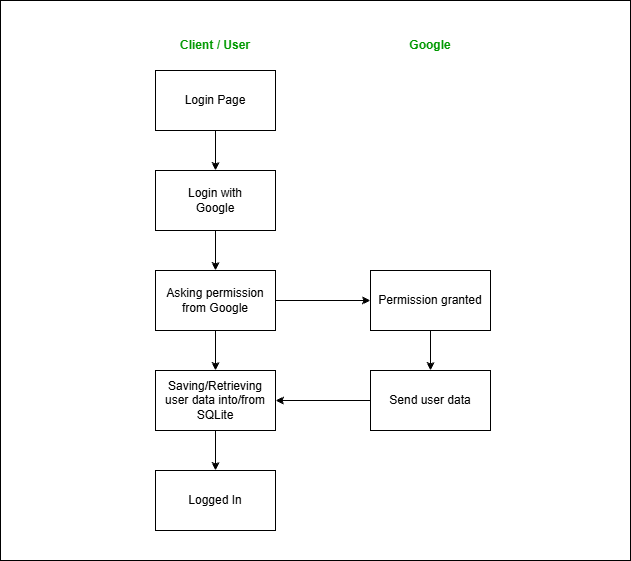
Utilizing Google login in this PHP Google Login Tutorial allows you to simplify user registration and login processes.
So, we’re basically asking permission and data from Google to later store the user details into SQLite Database. So we’re registering a new account with data from Google. But, do note that if the account is made with Google, there is no password. So, you have to log in with Google every time for that account.
SQLite database is created automatically once the user opens the application. You do not need to start the MySQL server because we will be dealing with a SQLite database.
Now, let’s see how we can turn that into code.
First, we’ll have to get access from the Google API, which is a Google Service that enables us to log in with a Google Account as one of its functionalities.
Create Google API Project
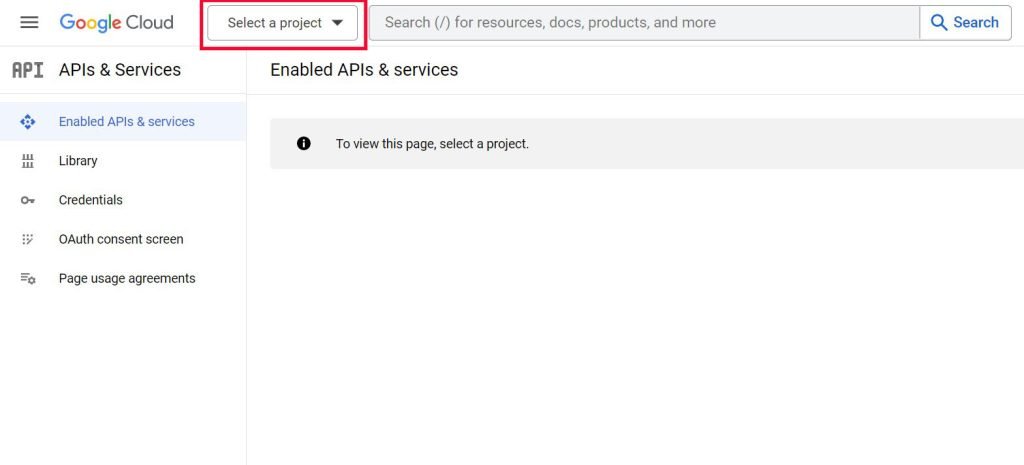
Go to Google Developer Console, choose select a project.

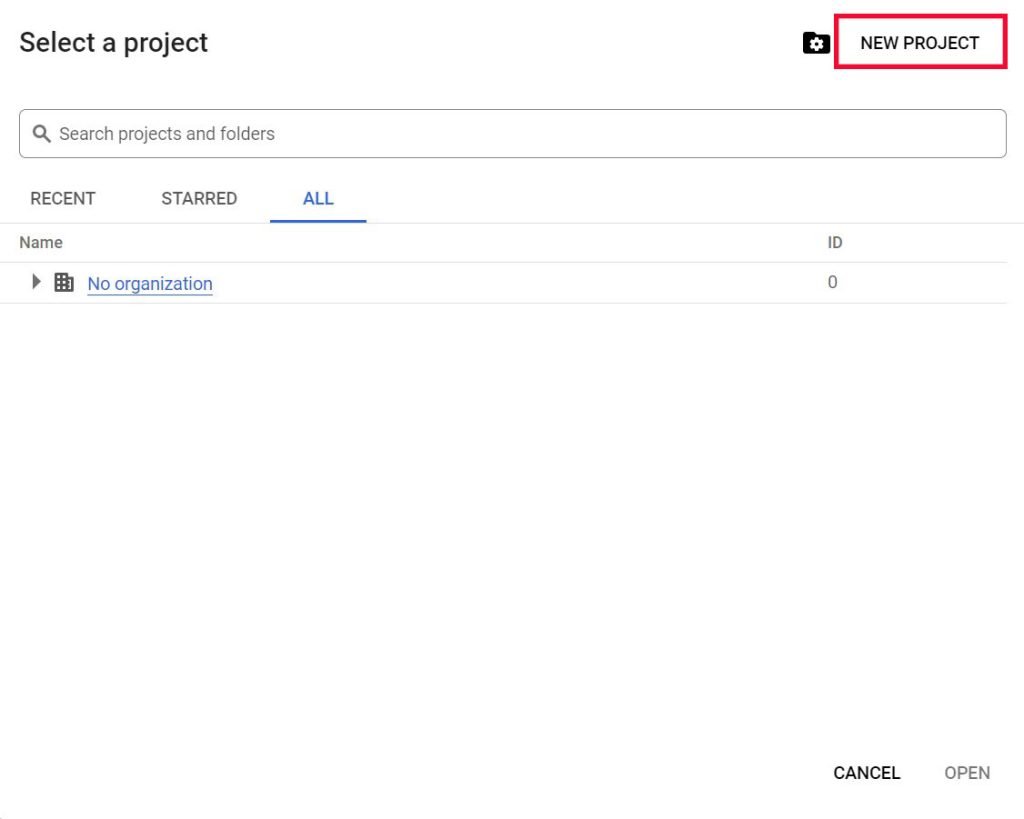
Click New Project.

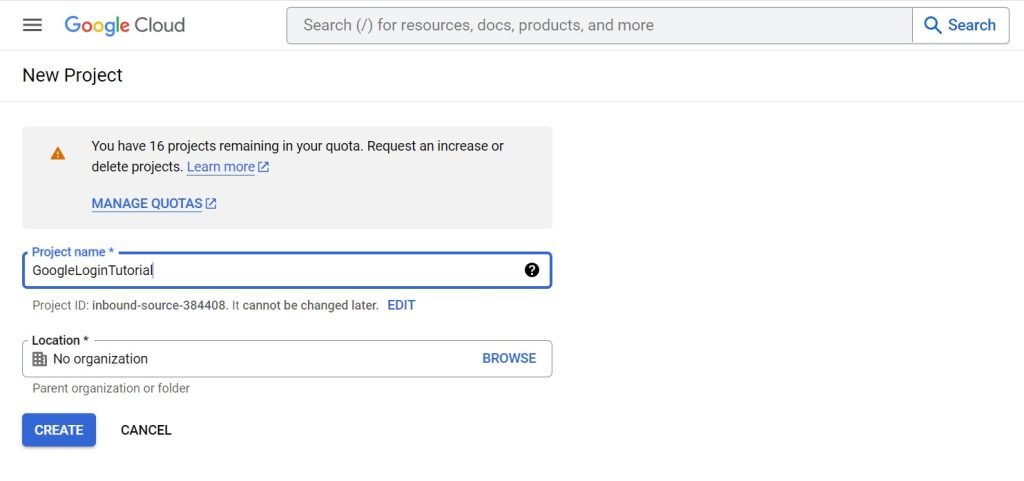
Fill in the project name and click Create.

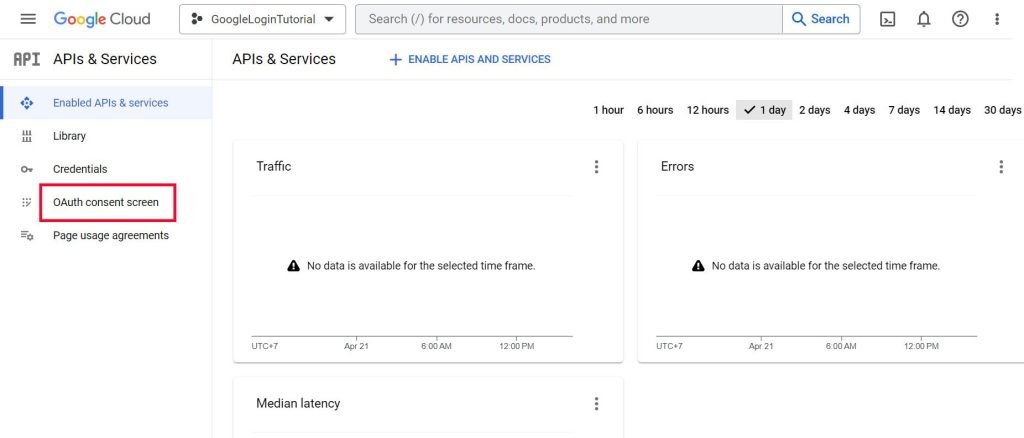
You’ll be redirected to the dashboard, go tothe OAuth consent screen.

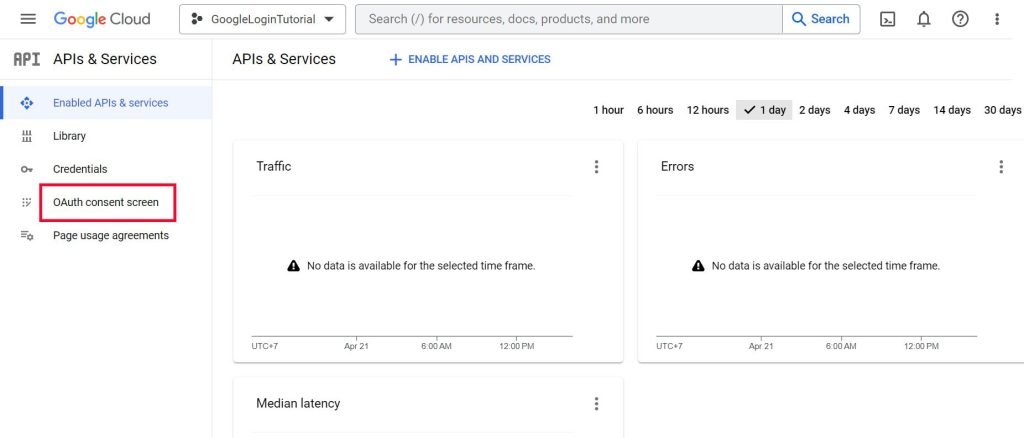
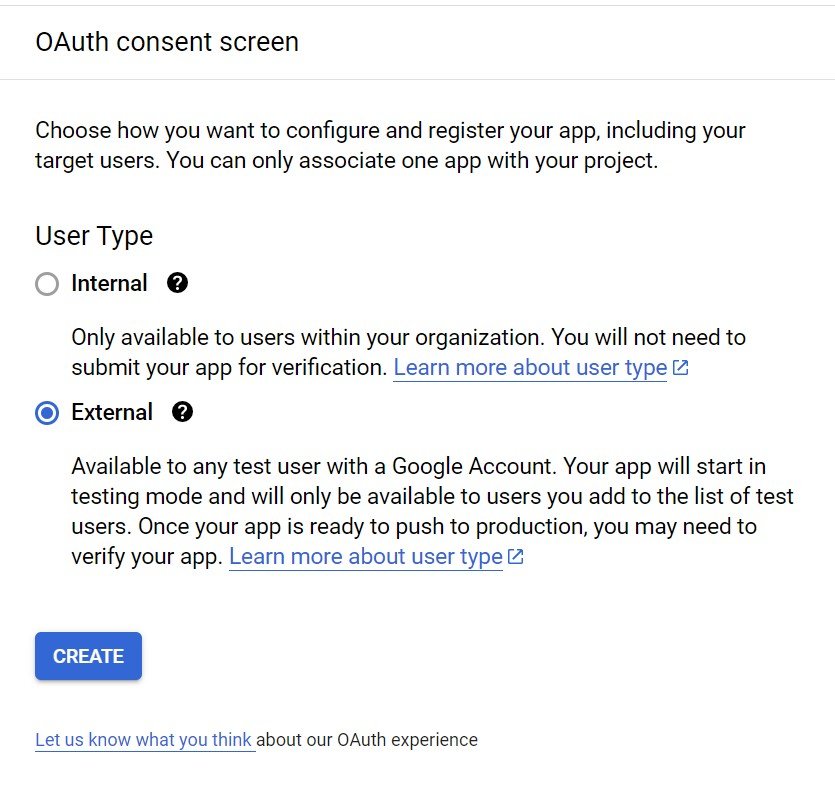
In the OAuth consent screen page, choose the options you want. For practice, just choose external.

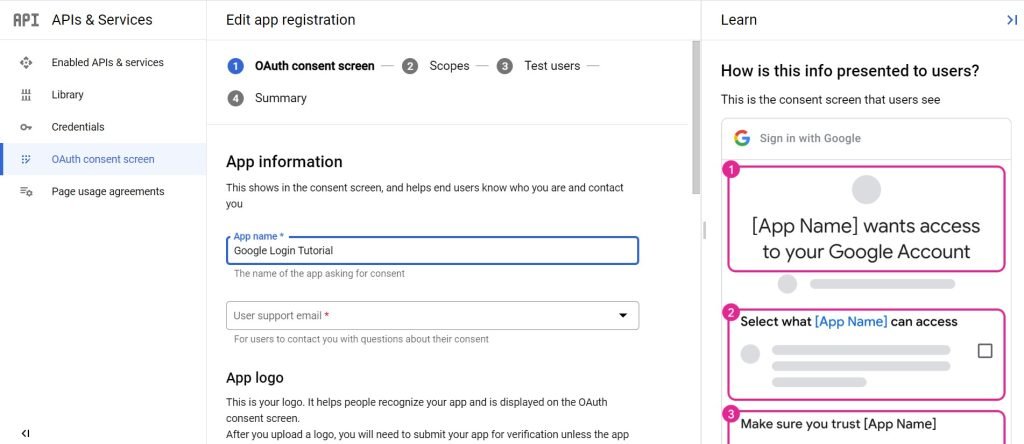
Fill the remaining forms and save.

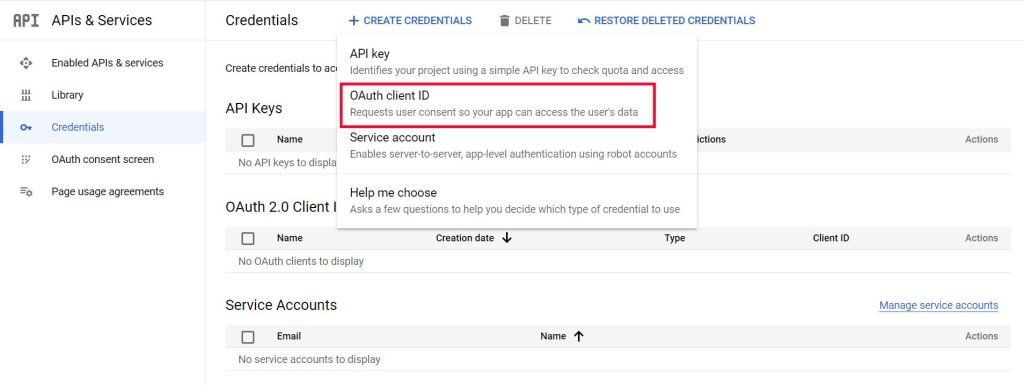
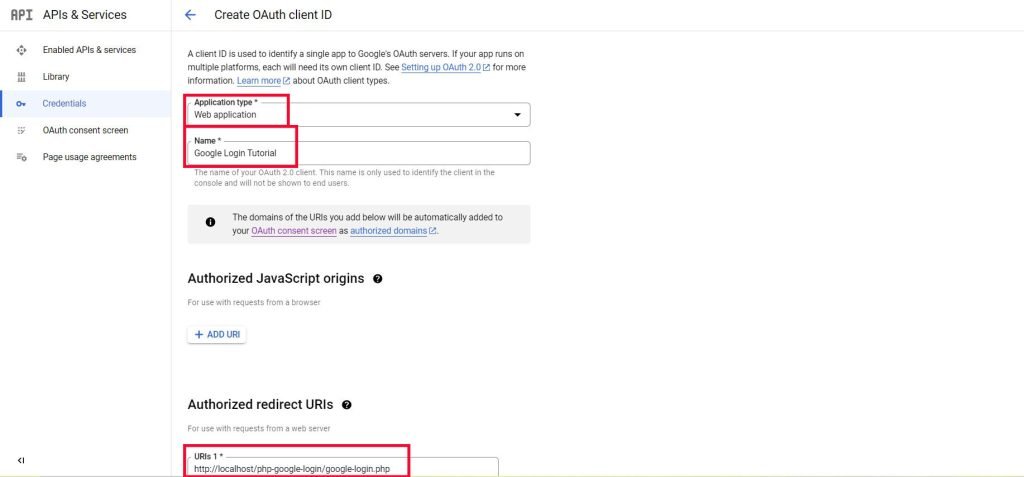
After filling the forms, go to Credentials page and create a new OAuth Client ID.

Fill in the data. For the redirect URL, fill in the URL where you’ll be using the Google API. Modify it according to your project path. In this case, I entered google-login.php since I’ll use the Google API there.

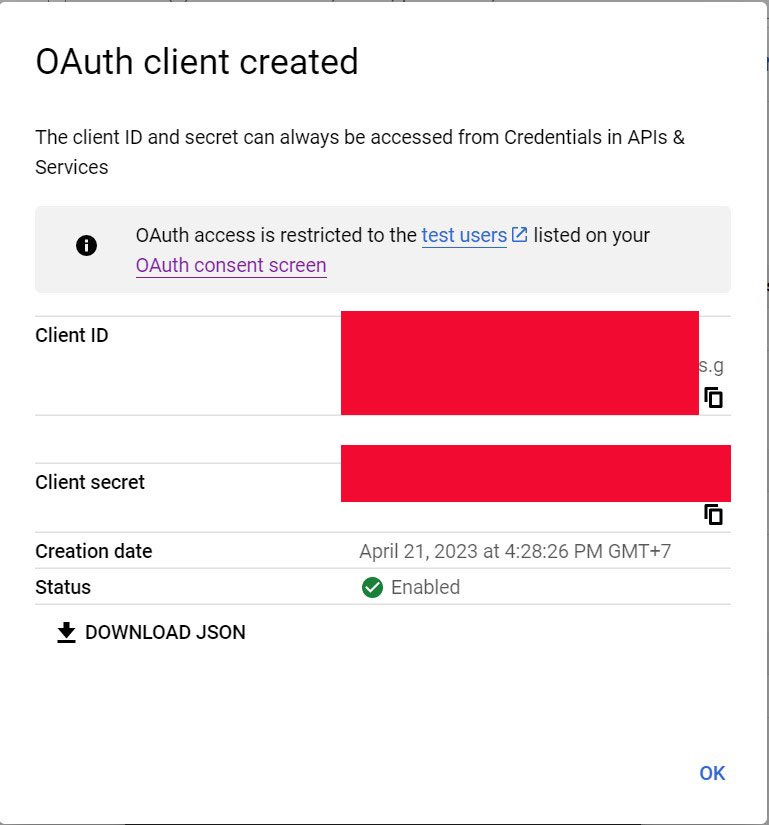
Now, your OAuth client is created. Save the client ID and client secret since we have to put them in our code.

You can look back or edit the credentials with the edit button from the credentials dashboard.
To begin, follow this PHP Google Login Tutorial for creating a seamless login experience.
Download Google API PHP Client Library
After we’ve configured the API, we need to download the library that connects us with the project and put it in our project. Head over to the release page and download the compressed folder that is named like google-api-php-client–PHPversion.zip. Choose this, for example.
Then, extract that zip into our php project folder. For example, I extract it as google-api-php-client folder.
Code
In our login.php, add a link to login with Google below our register link. In the link (google-login.php), there is the logic to allow logging in with Google.
By following this PHP Google Login Tutorial, you’ll learn how to streamline user authentication.
<a href="google-login.php">Login with Google Account</a>
Next, create google-login.php and write the code below.
<?php
session_start();

// Use the Google API client library
require 'google-api-php-client/vendor/autoload.php';
$google_client = new Google_Client();

// Set the application name and API credentials
$google_client->setApplicationName('GoogleLoginTutorial');
$google_client->setClientId('86085873701-dr27t62c1btq2ego5ubecg4895bog8e0.apps.googleusercontent.com');
$google_client->setClientSecret('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');
$google_client->setRedirectUri('http://localhost/php-google-login/google-login.php');

// Add scopes to request access to user data
$google_client->addScope('email');
$google_client->addScope('profile');

// Create a new instance of the Google OAuth2 service
$google_oauthv2 = new Google_Service_Oauth2($google_client);

// If the user grants permission, authenticate and set access token to allow the Google account to be used
if(isset($_GET['code'])){
    $google_client->authenticate($_GET['code']);
    $token = $google_client->getAccessToken();
    $google_client->setAccessToken($token);
}

// If access token exists, fetch user data and save it in the database
if ($google_client->getAccessToken()) {
    // connect.php now uses SQLite
    // No changes needed here — PDO queries below work identically with both drivers.
    include 'connect.php';
    // Get user profile data from Google
    $google_user_profile = $google_oauthv2->userinfo->get();
    $username = $google_user_profile['given_name'].$google_user_profile['family_name']; // Creating username from fullname
    $email = $google_user_profile['email'];
    // Retrieve from database to check if a user with this email address already exists
    $sql = "SELECT id FROM users WHERE email=?";
    $row = $connection->prepare($sql);
    $row->execute([$email]);
    $user = $row->fetch();
    // If no user exists with this email address, register with google account
    if(empty($user)){
      $sql = "INSERT INTO users(username, email) VALUES(?,?)";
      $row = $connection->prepare($sql);
      $row->execute([$username, $email]);
      $user_id = $connection->lastInsertId();
    }else{
      $user_id = $user['id'];
    }
    $_SESSION['user_id'] = $user_id;
    echo '<script> alert("Logged In"); window.location="index.php" </script>';
} else {
    // If no access token exists, generate an authorization URL and redirect to it
    $authUrl = $google_client->createAuthUrl();
    header("location: ".$authUrl);
}
?>
For explanation, let’s break the code into smaller parts. (If you already understand the code, you may skip to the conclusion)
The code below calls or retrieves the library to then be initialised.
// Use the Google API client library
require 'google-api-php-client/vendor/autoload.php';
$google_client = new Google_Client();
Then, we set the credentials according to the Google API project we made.
In summary, this PHP Google Login Tutorial provides insights into integrating Google login with minimal effort.
// Set the application name and API credentials
$google_client->setApplicationName('GoogleLoginTutorial');
$google_client->setClientId('YOUR CLIENT ID');
$google_client->setClientSecret('YOUR CLIENT SECRET');
$google_client->setRedirectUri('http://localhost/php-google-login/google-login.php');
This PHP Google Login Tutorial will ensure you leave with a solid understanding of the process.
Ultimately, this PHP Google Login Tutorial demonstrates how to leverage Google authentication for ease of use and security.
Next, we add the scopes. Basically, we’re telling Google that we need permission to access email and profile data.
// Add scopes to request access to user data
$google_client->addScope('email');
$google_client->addScope('profile');
After the configuration is done, we use another class that is specific to authentication. With that class, we can get the user data.
// Create a new instance of the Google OAuth2 service
$google_oauthv2 = new Google_Service_Oauth2($google_client);
This block of code checks if the user has granted permission for the application to access their Google account. This is shown from the $_GET parameter. If the $GET parameter is not empty, it means permission is granted, and we have to authenticate the code and set the access token. The access token is needed to ensure that the application has access tothe Google account.
// If the user grants permission, authenticate and set access token to allow the Google account to be used
if(isset($_GET['code'])){
    $google_client->authenticate($_GET['code']);
    $token = $google_client->getAccessToken();
    $google_client->setAccessToken($token);
}
The final code block checks that the access token is set. If it is, we retrieve data from the Google account. Then, we either insert that data into our SQLite Database (registering a new account with data from Google) or logging in (getting the user id and setting the session) and then redirecting the user to the index page. If the access token is not set, we generate a URL that asks the user for access permission and redirect the user to that page.
// If access token exists, fetch user data and save it in the database
if ($google_client->getAccessToken()) {
    // connect.php now uses SQLite
    // No changes needed here — PDO queries below work identically with both drivers.
    include 'connect.php';
    // Get user profile data from Google
    $google_user_profile = $google_oauthv2->userinfo->get();
    $username = $google_user_profile['given_name'].$google_user_profile['family_name']; // Creating username from fullname
    $email = $google_user_profile['email'];
    // Retrieve from database to check if a user with this email address already exists
    $sql = "SELECT id FROM users WHERE email=?";
    $row = $connection->prepare($sql);
    $row->execute([$email]);
    $user = $row->fetch();
    // If no user exists with this email address, register with google account
    if(empty($user)){
      $sql = "INSERT INTO users(username, email) VALUES(?,?)";
      $row = $connection->prepare($sql);
      $row->execute([$username, $email]);
      $user_id = $connection->lastInsertId();
    }else{
      $user_id = $user['id'];
    }
    $_SESSION['user_id'] = $user_id;
    echo '<script> alert("Logged In"); window.location="index.php" </script>';
} else {
    // If no access token exists, generate an authorization URL and redirect to it
    $authUrl = $google_client->createAuthUrl();
    header("location: ".$authUrl);
}
Conclusion
That’s how you can log in with Google and store it in the SQLite database without any setup for it. It’s the same as registering, but it’s just easier since the data we need to fill is automatically taken from our Google account.