HTML is essential for web development, but learning it can feel confusing at first. Below are some common beginner questions—along with simple, clear answers.
So, what is HTML?
So what is HTML exactly? HTML (HyperText Markup Language) is the language that defines the structure of a webpage — and understanding it is the first step in web development.
- HyperText refers to the links that connect one page to another.
- Markup refers to the tags (elements) used to describe the content on your page.
Think of HTML as the bare‑bones framework of a website. CSS will later style it, and JavaScript will make it interactive.
How do you use it?
You don’t need to install anything—your browser already understands HTML.
Just create a file with the .html extension.
For example:
- Create a folder called test.
- Inside it, create a file named index.html.
- Double‑click the file to open it in your browser. It will start out blank.
Try this example
The example below covers the most essential HTML tags for beginners. Copy it into your index.html, save the file, and refresh your browser to see what changes.
<!DOCTYPE html>  <!-- information about what type of file it is -->
<html lang="en">
<head>
    <!-- meta tags or additional information about the page -->
    <meta charset="UTF-8">
    <meta http-equiv="X-UA-Compatible" content="IE=edge">
    <meta name="viewport" content="width=device-width, initial-scale=1.0">
    <title>Example</title>
</head>
<body>
    <!-- texts with different sizes and importance -->
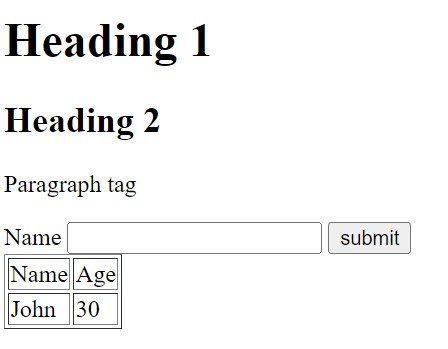
    <h1>Heading 1</h1>
    <h2>Heading 2</h2>
    <p>Paragraph tag</p>

    <!-- form -->
    <form action="">
        <label for="name">Name</label>
        <input type="text" name="name" id="name">
        <input type="submit" value="submit">
    </form>

    <!-- table -->
    <table border="1">
        <tr>
            <td>Name</td>
            <td>Age</td>
        </tr>
        <tr>
            <td>John</td>
            <td>30</td>
        </tr>
    </table>
</body>
</html>
After implementing the code, it should look like this.
HTML Class vs ID: When Should You Use Each?
Both class and id are identifiers you can target with CSS or JavaScript. The key difference is simple:
- id must be unique — only one element on the page should have that id.
- class can be reused — you can apply the same class to as many elements as you want.
So use a class when multiple elements share the same style or behavior, and use an id when the element is one‑of‑a‑kind and needs a unique identifier.
It might feel a little confusing at first, so let’s walk through an example to make it clearer.
<nav id="navbar">
    <ul class="menu">
        <li class="menu-option">Home</li>
        <li class="menu-option">About</li>
        <li class="menu-option">Contact</li>
    </ul>
</nav>
In the example above, you can see that we have a navbar with menu items inside it. Typically, an application only has one navbar, and it’s an important, unique element—so we give it an id. Meanwhile, we have multiple menu options. They aren’t unique, so we give them a class.
But if there’s only one .menu class, why not use an id instead? Because the element itself isn’t significant enough to be treated as unique. We usually reserve ids for important, one‑of‑a‑kind elements or sections, such as the hero section, navbar, or footer. Choosing between a class and an id becomes intuitive over time.
Another important factor is how CSS and JavaScript work. A class lets you style or target multiple elements at once, while an id can only be used on a single element.
HTML Value Attribute: When and How to Use It
The most common use of the value attribute is in forms. Forms include elements like buttons, inputs, and options. The value attribute acts as the initial value for these elements. For inputs, the value can be changed from what is initially shown, and that updated value is what gets submitted with the form. For options, the value cannot be changed by the user. Also note that for an input with the type “submit”, the value is the text displayed on the button.
These values are submitted with the form and can be processed with JavaScript, PHP, or other languages.
There’s also the <button> tag. You can give it a value and process that value with JavaScript, as shown in the example below.
<form>
    <input type="text" value="100">
    <select>
        <option value="50">Fifty</option>
    </select>
    <input type="submit" value="Submit">
</form>

<button value="Hi!" onclick="alert(this.value)">Say hi</button>
Those are the common uses of value attribute. You can also use it on the elements below.
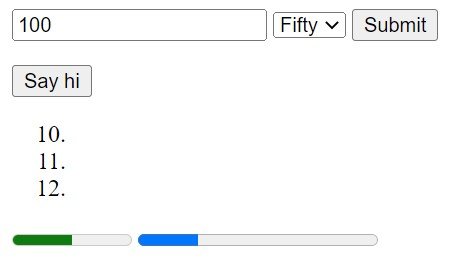
- Ordered Lists – value determines the number the list starts from
- Meter – value determines where the bar should be
- Progress – value determines where the bar should be
- Param – value determine if an action should be done or note
<ol>
    <li value="10"></li>
    <li></li>
    <li></li>
</ol>

<meter min="0" max="100" value="50"></meter>

<progress max="100" value="25"></progress>

<object data="video.wav">
    <param name="autoplay" value="true">
</object>
Now, it should look like this. Do note that param is not visible since we did not include the file.
HTML Form POST Method: How Does It Work?
A method defines how a form is submitted. You typically use the POST method when you want to add data to a database. On the other hand, there is the GET method, which—just like the name suggests—is used when you want to retrieve data. There are other methods as well, but these two are the most common.
Technically, POST and GET differ in how they send data. With the GET method, the data is sent through the URL. With the POST method, the data is sent through the body of HTTP requests.
Now they showing me to use an id in a p and h1…!
That means those <p> and <h1> elements are only used once on the page and are important. An example of when you might give an id to a <p> or <h1> is when the paragraph or heading is the main headline, the primary paragraph, or any text that is important to the page and appears only once. There aren’t any strict rules about when to use an id. Over time, you’ll develop an intuition for when it makes sense.
Where can I get a simple guide that tells me what each tag means, when to use
The most reliable resource for learning HTML is the official documentation on MDN Web Docs. However, documentation can feel a bit overwhelming if you’re new to HTML. You can also check W3Schools for a complete list of HTML tags and practical examples of how to use them.
If a full list still feels confusing, I recommend finding a tutorial that explains the most important and basic HTML tags—such as HTML.com, which also provides a cheat sheet containing a complete list of HTML tags.
The most important thing is to choose the resource that works best for you.
It feels like every video jumps around, and nothing explains things from beginning to end…
We can easily feel confused when learning programming, especially with so many videos and tutorials to choose from.
I suggest choosing a more structured way to learn. For example, you can look at a roadmap for the topic you want to study and search for each item on the list.
Another method is to watch a long, in‑depth video on a topic and check the comments to see whether the tutorial is helpful. FreeCodeCamp’s YouTube channel offers many high‑quality tutorials. You can also search for “HTML full course” (replace HTML with your topic) and choose a video that fits your learning style.
That should cover the basics you need. After that, start practicing by building something and searching for whatever you need to complete your project.
If you feel that’s still not enough, you can look for a paid course. Even though there are many free resources, paid courses often provide more structure, completeness, and reliability.
Conclusion
You’ve now got a solid foundation — the best way to learn HTML for beginners is exactly this: start with the basics, read the code, and build something small right away. It may look intimidating at first, but with regular practice, you’ll pick it up faster than you expect.
If you want, I can help you craft a stronger closing paragraph that ties into the rest of your article’s tone.
Also Read:
Master How to Center an Image in HTML