Starting with the Terminal on macOS: mac terminal commands for beginners
Learning mac terminal commands is one of the best things you can do as a developer or power user. The Terminal on macOS gives you direct access to the underlying UNIX based system. Instead of clicking through menus or windows, you can perform tasks using fast, precise, text‑based terminal commands. For developers, power users, and anyone who wants to work more efficiently, learning the Terminal is one of the best ways to unlock the full potential of your Mac.
For those interested in learning, this guide is an excellent introduction to mac terminal commands for beginners.
macOS includes a built‑in Terminal application called Terminal.app, located in the Utilities folder. Once you understand the basics of the macOS terminal command line — navigation, file management, and launching apps — you’ll be able to automate tasks, run development tools, and control your system with far more speed than the graphical interface allows.
How to Open Terminal on Mac: 2 Fastest Methods
There are several ways to open Terminal, but these two are the fastest and most common.
Method 1: Open Terminal Using Finder
- Click the Finder icon in your Dock.
- In the sidebar, select Applications.
- Scroll down and open the Utilities folder.
- Double‑click Terminal to launch it.
This method is helpful if you’re new to macOS or prefer navigating visually.
Method 2: Open Terminal Using Mac Spotlight Search
- Press Command (⌘) + Spacebar.
- Type Terminal into the search bar.
- Press Return to open it.
Spotlight is the fastest way to launch Terminal once you’re comfortable with keyboard shortcuts.
Understanding the Terminal Window
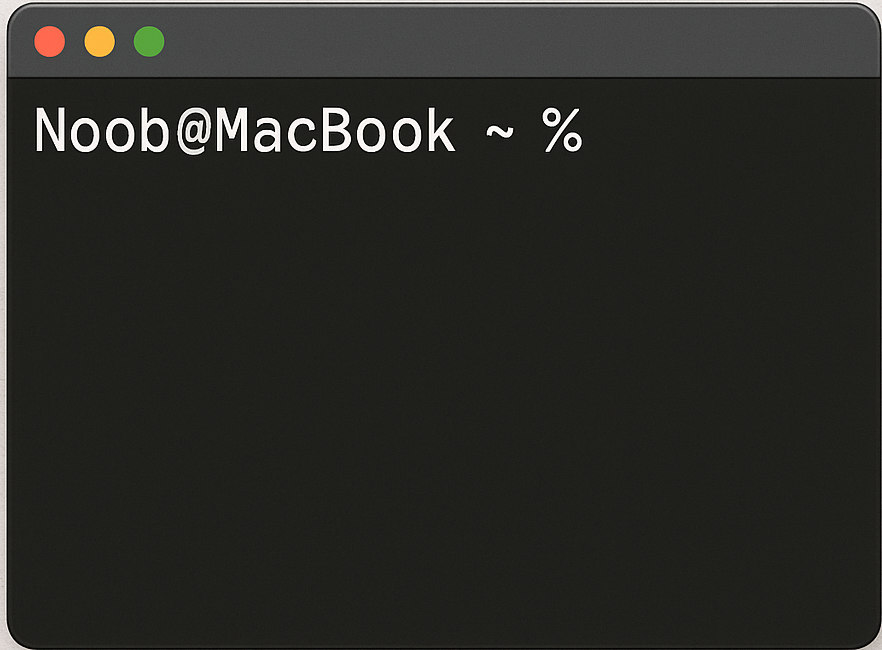
When Terminal opens, you’ll see a prompt that usually looks something like:
Noob@MacBook ~ %
This prompt tells you:
- Your username (Noob)
- Your computer name (MacBook)
- Your current directory (~ means your Home folder)
- The shell symbol (% or $ depending on your shell)
You don’t type the symbol—just the command that follows it.
Essential Terminal Commands for Beginners
These terminal commands form the foundation of navigating and managing files in macOS using the command line.
cd Command on Mac: Change Directory
This command moves you up one level in the directory structure:
$ cd ..
This command moves you into the specified folder (replace folder-name with your actual folder name):
$ cd folder-name
Jump to your Home folder:
$ cd ~
pwd – Print Working Directory
This shows your current location in the file system:
$ pwd
mkdir – Make Directory
Creates a new folder in your current location:
$ mkdir new-folder
rmdir – Remove Directory
Deletes a folder, but only if it’s empty. Use with caution:
$ rmdir folder-name
ls – List Directory Contents
Lists all files and folders in your current directory:
$ ls
Add flags for more detail:
- ls -l — long list format
- ls -a — show hidden files
- ls -lh — human‑readable file sizes
open -a – Open Applications from Terminal
You can launch apps directly from the Terminal.
$ open -a "Application Name"
Example:
$ open -a "Google Chrome"
Open a folder in Finder:
$ open .
This is especially useful when switching between Terminal and GUI workflows.
Why Mac Terminal for Web Development Matters
If you’re learning web development, the Terminal becomes essential for tasks like:
- Installing packages with Homebrew, npm, Composer, or pip
- Running local development servers
- Managing Git repositories
- Creating and organizing project folders
- Automating repetitive tasks with scripts
- Working with SSH to connect to remote servers
Most modern development tools assume you’re comfortable with the command line, so learning these basics early will save you time and frustration later.
Helpful Tips for Using Terminal More Efficiently
- Use Tab to autocomplete file and folder names.
- Press the Up Arrow to cycle through previous commands.
- Use clear to wipe the screen without closing Terminal.
- Split Terminal windows using Command + D (vertical) or Command + Shift + D (horizontal).
- Customize your shell (zsh, bash, or fish) for better colors, prompts, and shortcuts.
These small habits dramatically speed up your workflow.
Final Thoughts
The macOS Terminal may look intimidating at first, but once you learn a handful of commands, it becomes one of the most efficient tools on your system. Whether you’re navigating files, launching apps, or building full web development projects, the command line gives you speed, precision, and control that the graphical interface can’t match.
Also Read:
The Ultimate Guide to Setting Up Laravel with SQLite (Mac & Windows)