




In a previous tutorial, we implemented Google Login using pure PHP and the Google PHP Client Library. This time, we’re going to do the same thing—but using JavaScript instead.
This approach is simpler, requires no client secret, and gives you access to Google’s pre‑designed sign‑in buttons. You can still send the retrieved user data to PHP later if you want to store it in a database, but that’s optional and outside the scope of this guide.
Let’s get started.
Update Your Google API Project
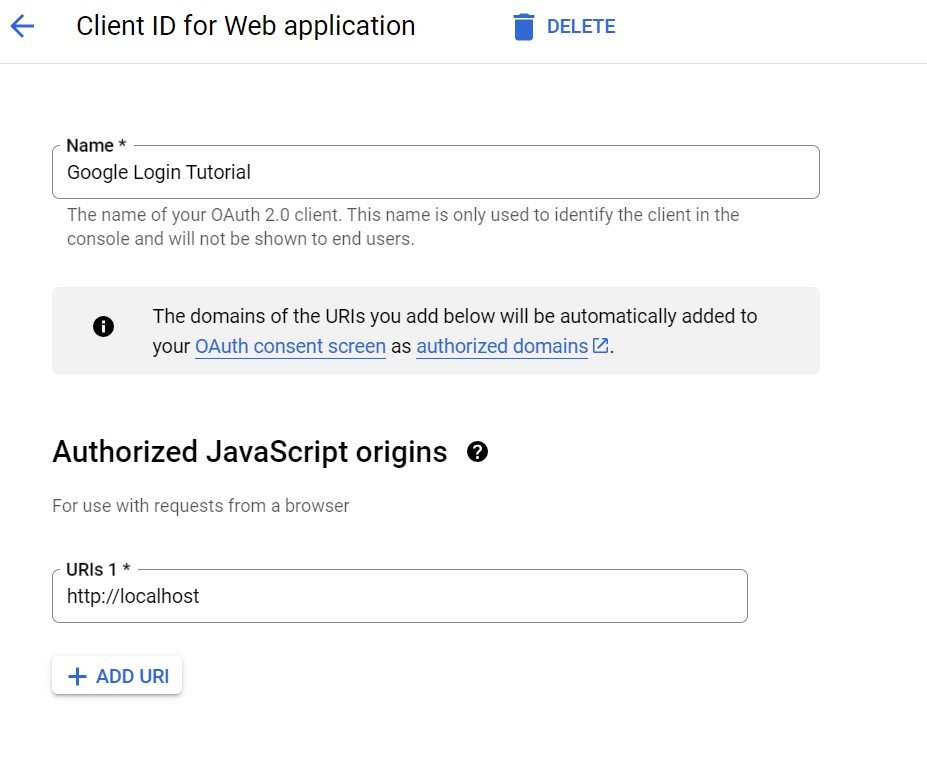
Before using Google Login on the frontend, you must tell Google which domain is allowed to use your OAuth credentials.
In your Google Cloud Console:
- Open your OAuth 2.0 Client ID
- Scroll to Authorized JavaScript origins
- Add the domain where your login page will run
Since we’re testing locally, add:
http://localhost
Here’s what that screen looks like:

Then, we have to add the Google API library for JavaScript by adding this code into head.php.
The meta tag works as an identifier for your Google ID and the script tag links to the library. You’ll notice there are async and defer attributes in the script tag. They basically tells your page to not wait until the script is fully loaded and just continue to load the rest of the code. Note : replace Client ID with your own Client ID
<!DOCTYPE html>
<html lang="en">
<head>
    <meta charset="UTF-8">
    <meta http-equiv="X-UA-Compatible" content="IE=edge">
    <meta name="viewport" content="width=device-width, initial-scale=1.0">
    <title>Contacts Manager</title>

    <!-- Google library -->
    <meta name="google-signin-client_id" content="Client ID">
    <script src="https://accounts.google.com/gsi/client" async defer></script>
</head>
<body>
Then, go to login.php and add this code below “Login with Google Account”.
You’ll notice there are two main parts to this code, HTML and JavaScript.
The HTML part shows the Google login button element. One advantage of this method is that you can get options of predesigned buttons. There are 2 divs here, the upper div is for the credentials and what the button will do while the lower div is for how the button will look. You can actually combine them into 1 div, but for readablility, it’s better to divide them.
The attributes are selfi describing, but for full explanation and full opstions of what attributes can be used, refer to the Google Identitiy’s HTML API documentation and experiment with the attributes.
The JavaScript part of the code handles what will happen after the button is clicked. We prepare a function that will handle the response when the button is clicked. Keep in mind that the response is encoded, so we decode it and then we move to another page (save-to-db.php which we will make) and passing the data we need as $_GET parameters. You can console.log the decoded response to check what data is available and use the ones you need or you can check the documentation for complete information.
<!-- HTML -->
<p>Google login with JS</p>
<div id="g_id_onload"
    data-client_id="Client ID"
    data-context="signin"
    data-ux_mode="popup"
    data-callback="handleCredentialResponse"
    data-auto_prompt="false">
</div>
<div class="g_id_signin"
    data-type="standard"
    data-shape="rectangular"
    data-theme="outline"
    data-text="signin_with"
    data-size="large"
    data-logo_alignment="left">
</div>

<!-- JavaScript -->
<script>
function handleCredentialResponse(response) {
    const decodedResponse = decodeJwtResponse(response.credential);
    window.location="save-to-db.php?given_name="+decodedResponse.given_name+"&family_name="+decodedResponse. family_name+"&email="+decodedResponse.email;
}
//decode JWT
function decodeJwtResponse(data){
    var tokens = data.split(".");
    return JSON.parse(atob(tokens[1]));
}
</script>
Conclusion
Now that we’ve retrieved the data, we need to prcoess it. The JavaScript passes the retrieved data to be processed in another page. So, we create save-to-db.php and write the code below. This code recieives the data and save it just like if we log in with Google using pure PHP. The code are very similar, but instead of retrieving through API, we get the data we need through $_GET parameters.
<?php
session_start();
include 'connect.php';

// Get user profile data from GET parameters
$username = $_GET['given_name'].$_GET['family_name']; // Creating username from fullname
$email = $_GET['email'];
// Retrieve from database to check if a user with this email address already exists
$sql = "SELECT id FROM users WHERE email=?";
$row = $connection->prepare($sql);
$row->execute([$email]);
$user = $row->fetch();
// If no user exists with this email address, register with google account
if(empty($user)){
    $sql = "INSERT INTO users(username, email) VALUES(?,?)";
    $row = $connection->prepare($sql);
    $row->execute([$username, $email]);
    $user_id = $connection->lastInsertId();
}else{
    $user_id = $user['id'];
}
$_SESSION['user_id'] = $user_id;
echo '<script> alert("Logged In"); window.location="index.php" </script>';
That’s how you can log in with Google using JavaScript API instead of PHP. Both methods are very similar, the difference is on the way to retrieve the data. Adavntages of the JavaScript method includes predesigned buttons and no need of client secret. Use whichever method suits you best. For complete information, refer to the documentation.