

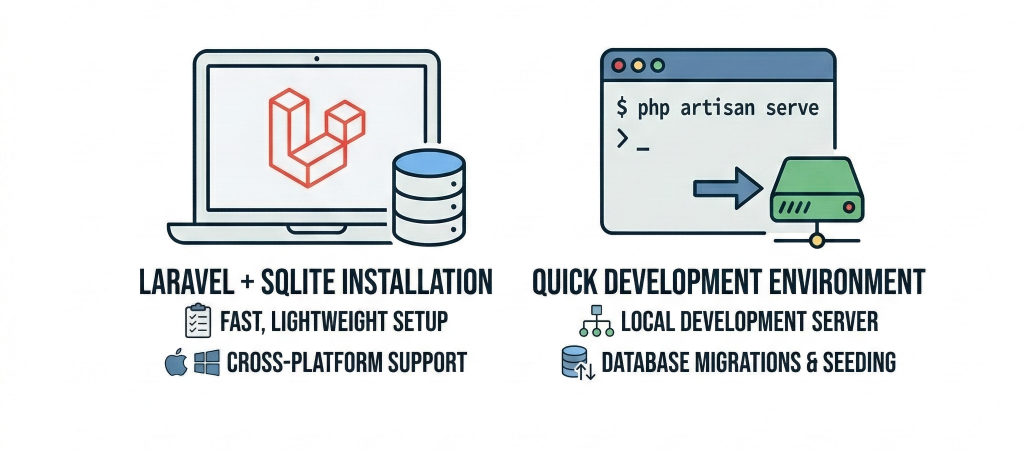
Setting up a modern web application doesn’t have to be a headache. In this guide, we’ll walk through installing Composer, creating a Laravel project, and using SQLite—the fastest way to get a database running without installing extra software like MySQL or PostgreSQL.
Part 1: What is Composer and Why Do You Need It?
Before you can run Laravel, you need Composer.
Think of Composer as the Project Manager for your code. Laravel isn’t just one giant file; it is built using hundreds of smaller “packages” (tools for sending emails, handling passwords, or talking to databases). Instead of you downloading these one by one, Composer:
- Installs everything Laravel needs to run.
- Updates your tools to the latest secure versions.
- Autoloads your files so they can “talk” to each other seamlessly.
How to Install Composer
For Mac Users
The most efficient way to manage tools on a Mac is via Homebrew.
- Open Terminal (Command + Space, type “Terminal”).
- Type:
brew install composer - Verify by typing:
composer --version
For Windows Users
- Download the Composer-Setup.exe.
- Run the installer. It will automatically find your
php.exe(if you have XAMPP or PHP installed). - Once finished, restart your Terminal or PowerShell.
- Verify by typing:
composer --version
Part 2: Creating Your Laravel Project
With Composer ready, you can now generate a fresh Laravel application.
- Open your Terminal (Mac) or PowerShell (Windows).
- Run the creator command:
composer create-project laravel/laravel my-appNote: Replace “my-app” with whatever you want to name your project. - The Interactive Prompt: Modern Laravel (v11+) may ask you which database you want to use. Choose
SQLite.
Part 3: Setting Up the SQLite Database
What is SQLite? (The “Zero-Configuration” Database)
If you are new to web development, the word “database” usually brings to mind a heavy, complex piece of software (like MySQL or PostgreSQL) that runs as a separate background service on your computer, requiring usernames, passwords, and port numbers.
SQLite is different. It is a high-performance database engine that is file-based.
1. The “Library” Analogy
- MySQL/PostgreSQL: Imagine a massive Public Library. To get a book, you have to travel there, talk to a librarian (the server), prove who you are (login), and ask them to find the data for you.
- SQLite: Imagine a Book in your Backpack. The data is right there in your project folder. Whenever your app needs information, it just opens the “book” (the
.sqlitefile), reads it, and closes it. No travel or “librarian” required.
2. Why Use SQLite with Laravel?
Since Laravel 11, SQLite has become the default choice for new projects because of three main reasons:
- Zero Setup: You don’t need to install a database server on your Mac or Windows machine. You just create one empty file, and you’re ready to go.
- Portability: Your entire database—including your users, posts, and settings—lives inside a single file (usually
database.sqlite). If you move your project folder to another computer, the database moves with it automatically. - Speed for Developers: When you are just starting or building a small-to-medium application, SQLite is incredibly fast because there is no “network talk” between your app and a database server.
3. How it Looks in Your Project
In a standard Laravel setup, your database isn’t “hidden” in a system setting; it’s a physical file in your sidebar:
Plaintext
my-app/
├── app/
├── config/
├── database/
│   └── database.sqlite  <-- THIS IS YOUR ENTIRE DATABASE
├── public/
└── .env
4. Is it “Real” SQL?
Yes! Even though it’s just a file, you still use standard SQL (Structured Query Language). Laravel’s Eloquent (the tool that talks to the database) handles everything for you behind the scenes. Whether you use SQLite today or switch to a massive MySQL server next year, your Laravel code stays exactly the same.
Would you like to see how to open this .sqlite file to browse your data visually?
In previous versions, you had to install a database server like MySQL. In the latest Laravel, SQLite is the default. It stores your entire database in a single file inside your project folder.
– Create the Database File
Enter your project folder and create the blank database file:
- Mac:
bashcd my-app && touch database/database.sqlite - Windows (PowerShell):
powershellcd my-app; New-Item database/database.sqlite
– Configure the Environment (.env)
Open your project folder in your code editor (like VS Code) and find the .env file. Ensure the database section looks like this:
Code snippet
DB_CONNECTION=sqlite
# You don't need a host, port, username, or password for SQLite!
– Run Migrations
Now, tell Laravel to build the “tables” (for users, etc.) inside that SQLite file:
Bash
php artisan migrate
Part 4: Launching Your Site
Your setup is complete! To see your website live on your machine, run:
Bash
php artisan serve
Laravel will give you a link, usually http://127.0.0.1:8000. Copy and paste that into your browser to see the Laravel welcome screen.
Quick Comparison: SQLite vs. MySQL
| Feature | SQLite (Current Setup) | MySQL |
| Setup | Zero configuration | Requires server installation |
| Storage | One file in your project | Managed by a system service |
| Best For | Local development & small apps | Large-scale production apps |